


Maciej Strzelczyk, Developer Programs Engineer, Google Cloud Platform
Source: cloud.google.com/blog/… , cloud.google.com/blog/…
A penny saved is a penny earned!
Google Cloud Compute Engine offers a variety of ways to reduce costs, from optimizing your infrastructure to taking advantage of discounts. This post describes 10 practical tips to help you save money on Compute Engine. Whether you’re a small business just getting started with the cloud or a large enterprise looking to optimize costs, there’s something for everyone in this guide.
1. Review your current spending structure
Before you start looking for ways to optimize your Compute Engine budget, it’s a good idea to have a map — an understanding of your current situation and cost structure so you can make informed decisions about what to do next. The Google Cloud console payment dashboard is your map. It tells you exactly what you’re spending money on, and every penny is tracked down to individual SKUs (Stock Keeping Units). You can use it to see the overall picture of your organization’s finances, as well as analyze the costs of using a specific product for a specific project.
A closer look at your costs can help you identify resources you no longer need but are still paying for. After all, there is no better way to save money than to simply not spend it.
2. View automatic recommendations
Have you noticed the lights next to some of your machines on your virtual machine list page? These are automatic recommendations from Google Cloud for actions you can consider to save money. These helpful tips come from Recommendation Hub, a new tool that helps you manage your project in the following categories: cost, security, performance, reliability, manageability, and sustainability. The recommender system has some information about your resource structure and can suggest actions you might consider. The goal here is to help you reduce costs without affecting performance.
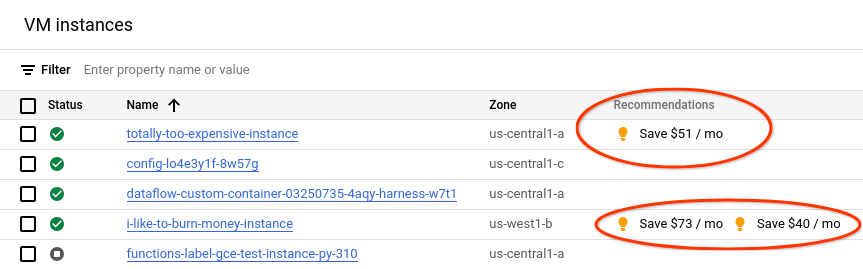
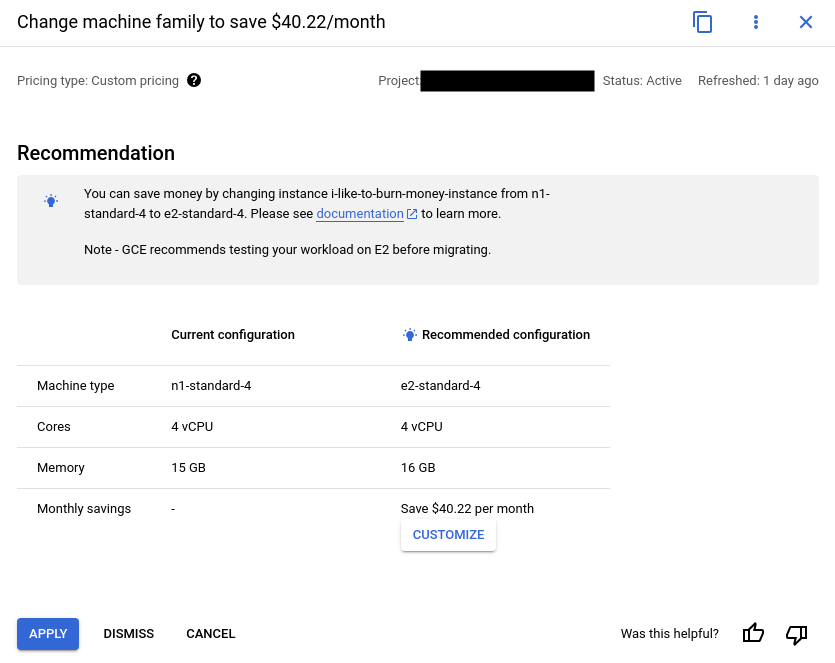
The system can suggest actions such as changing the machine type (ie from n1 to e2), downscaling a machine based on its usage, etc. After you click on the recommendations, you will receive a summary of the proposed change with an estimate of the cost savings. You can choose whether you want to apply the changes. Remember that changes to the calculation require a restart of the instance.
3. Check the disk types
Each virtual machine in your fleet must have at least one persistent disk attached to it. Drives in Google Cloud come in different types, offering different performance and features. Available types:
- Hyperdisk. Designed for the most demanding mission-critical applications, Hyperdisk offers a scalable, high-performance storage service with a comprehensive set of storage and data management capabilities.
- Hyperdisk Storage Pools are pre-purchased storage capacity, bandwidth, and I/Os that you can provide to your applications as needed.
- Persistent Disk is the default storage solution for your virtual machines. It can be zonal or regional. It comes in four versions:
- Standard is the equivalent of HDD for a PC. Provides the cheapest storage in exchange for lower I/O speeds.
- SSD is a high-speed solution that provides high I/O performance but at a higher cost per GB.
- Balanced – the golden mean between “Standard” and “SSD”; the default solution for new compute instances.
- Extreme – for the most demanding workloads. Allows you to control not only the size of the disk, but also its IOPS (number of input/output operations).
- Local SSD – SSD physically attached to the host where your virtual machine is running. Extremely fast, but not permanent.
Let’s focus on the Persistent Disk family, as it is the most popular storage solution. When creating a new virtual machine, the default disk type is Balanced, a balanced disk that provides a middle ground between performance and cost. While this is fine for many scenarios, it may not be the best option for all applications. For example, stateless applications that are part of auto-scaling deployments and store all relevant information in an external cache or database do not require fast disk I/O. These programs are great candidates for changing the drive type to a standard drive, which can be three times cheaper per GB than a balanced drive (depending on region).
You can get a list of drives used in your project using the command:gcloud compute disks list --format="table(name, type, zone, sizeGb, users)"
To change the disk type, you will need to clone it and change the VMs that use it to start using the new disk.
4. Free up space on your drives
Continuing with memory, drive type isn’t the only factor that affects costs. Drive usage can also play a big role in your budget. If your project has a 100GB persistent disk, you pay for 100GB whether you use 20%, 70%, or 100% of that space. Even if your application doesn’t use persistent disks for data storage, you can still pay close attention to your boot disks. Consider if your stateless application really needs a disk with several gigabytes of free space, then consider shrinking those disks according to actual usage. People like round numbers and can often create 20GB drives when they only need 12GB. Be more like a car, save money.
5. Commit to use committed use discounts (CUD)
This advice applies to many other products than just Compute Engine. If you know you’ll be using a certain number of virtual machines for at least a year (or three years), you can get a solid discount! Using a variety of CUDs, you can purchase much lower prices for vCPUs, memory, GPUs, local SSDs, single-tenant nodes, and software licenses. With Flex CUD, you don’t even need to limit your virtual CPU and memory usage to a single project, region, or batch of machines.
Guaranteed usage discounts are available for many Google Cloud products. If you’re happy with Google Cloud and don’t plan on leaving anytime soon, strongly consider using CUD wherever possible to achieve significant savings. In the case of computing, you can purchase CUDs directly from the Google Cloud console.
6. Let go of external IPs
By default, Compute instances created using gcloud or the Google Cloud console have a temporary external IP address. Sometimes this is just what you need to set up a quick prototype or host a single VM instance of a specific service using dynamic DNS. However, if you’re using VMs with a load balancer, it’s worth asking if you want them to still have an external IP address. Ultimately, clients communicate with your services through the load balancer’s public IP address. On the other hand, it can be very useful to have access to the Internet, for example, to communicate with third-party services; out of the box a VM without an external IP cannot connect to the Internet.
Fortunately, Cloud NAT solves this problem with a Public NAT configuration. Cloud NAT does the same thing that many ISPs do for their customers: it provides network address translation, hiding multiple machines behind a single external IP address. From the outside, it appears that all the requests are coming from the same IP address, when in reality these requests are sent by several different machines. Side note: This works for Google Kubernetes Engine as well.

If your fleet only contains a couple of virtual machines, you probably won’t notice much of a difference in your monthly bill by turning off external IP addresses. However, the savings grow linearly with the size of your fleet. And there are two more advantages of using Cloud NAT: you increase security (your virtual machines are not accessible to the Internet) and you do not consume the quota of IP addresses in your project.
7. Automate turning machines on and off
Cron (a Unix task scheduling utility) is the basis of many automated, cyclic, batch processing systems. This allows you to schedule actions in a regular pattern without having to worry about manually triggering them. Virtual machines configured with cron wait for the right time to start a time-consuming task. For a few hours, the machine is very busy doing its job, but when the job is done, the virtual machine just sits there, waiting for the cron job to start again. In other words, for a few hours the virtual machine creates value for the company, and the rest of the day it creates costs. Wouldn’t it be great if you could get rid of some of the overhead? Turns out you can — sort of.
A virtual machine incurs costs when it consumes resources such as vCPUs, memory, disks, accelerators (GPUs and TPUs), or external IP addresses. When it’s on, it uses all these resources, but when it’s off, the only category of cost it generates is disk related (assuming you don’t use static external IP here). It is only natural that a computer that is not in use is turned off (to save electricity and save the planet). Unfortunately, a disabled machine cannot run a cron job unless… you use a cron-like system to run the machine instead!
What do I mean? It turns out you can create a cron-like schedule in your project to run your machine. Then all you have to do is set up a cron-based process to automatically start when the machine starts, and then…! You get the same functionality (nightly data collection and processing) but don’t spend money on keeping the virtual machine running when you don’t need it. When your nightly process is complete, the machine can shut down from the inside and wait in that state until the next time it’s needed.
8. Consider using Spot VMs
Spot VMs are a type of preemptible instance that can save you significant costs (they are 90% cheaper than standard VMs). Unlike regular virtual machines that run continuously, Spot virtual machines run on spare capacity in the Google Cloud and are subject to preemption. This means that if Google needs to reclaim resources, your Spot VM will be terminated with a 30-second warning.
But don’t let that scare you! Point VMs are ideal for batch processing, stateless workloads, and other workloads that can tolerate interruptions. And since they cost much less than regular virtual machines, you can save a lot on cloud computing costs.
One of the best things about Spot VMs is that you can use them like regular VMs. You can build them using the same tools and APIs, and they can run the same operating systems and applications. The only difference is that you pay less for them (and they can be turned off with minimum notice). Switching your managed instance group (stateless) or Google Kubernetes Engine (GKE) instances to point virtual machines is almost seamless, as the two systems simply replicate the machines that have been allocated to you.
9. Compare regions, find the best offer
Hosting your software in the Google Cloud has many benefits, one of which is the freedom to choose the physical location of the machines that run your services. Your choice of location may be influenced by aspects of your business such as compliance with local laws, feature availability, and proximity to your user base (and service latency).
Another factor is pricing. By looking at Compute’s pricing page, you can easily compare how much the products you use cost in different regions. In some cases where latency or sovereignty are not key variables, it makes sense to choose the more cost-effective region, especially when regions with different prices are close to each other. To help you choose the perfect regions, we also have a Google Cloud Region Selector tool to help you balance all these variables.
10. Introduce an automatic time limit
If you tend to forget about your virtual machines, there’s a new feature to help you save money: the ability to set a time limit after which your virtual machines are shut down or deleted.
Currently in preview, this can be useful in various scenarios. Imagine:
- You had a long operation. If it runs for a certain number of hours, you can set it to automatically stop the VM after that time so you don’t waste money and can go back and debug instead of leaving it running.
- Your team needs to run experiments. You can set up temporary virtual machines that stop after a certain amount of time, ensuring that no one has to remember to shut them down manually.
- Peak usage. If you need additional computing power during a limited time (for example, Christmas), you can create virtual machines that will be automatically deleted on a certain date and free up resources.
The more you think about it, the more uses you will find for this feature. You may not always be able to use it, but it’s something to keep in mind when setting up your infrastructure for day-to-day operations.
Conclusion
Many topics were covered, many different ways to optimize costs in Google Cloud were described. From fine-tuning your disk size, taking advantage of committed use discounts and learning Cloud NAT, to planning your instances and using Spot VMs, there’s no shortage of ways to save.
Remember, tracking your expenses in the cloud is like managing your personal finances: every penny counts! So, take the time to learn these strategies and get the most out of your cloud investment.
Keep your projects successful and your cloud accounts manageable. Happy optimization!
Wise IT is a Google Cloud Partner of the Year in the Services CEE category! If you are interested in migrating to Google Cloud or want to optimize your existing infrastructure, contact our specialists and get prompt and competent support: